Category Archives: eZee BurrP! Release Notes

Surcharges : additional charges on take-away orders

The new version brings numerous enhancements. See what will you get in the latest release.

Let your guest know about his additional charges on take-away orders

Up until the previous version of the restaurant POS, managing the extra charges for take-away order types was difficult. Therefore, to get rid of the hassles of creating a particular menu item of Parcel (Take-Away) charges and adding it in the KOT, we have introduced a new feature of Surcharge.

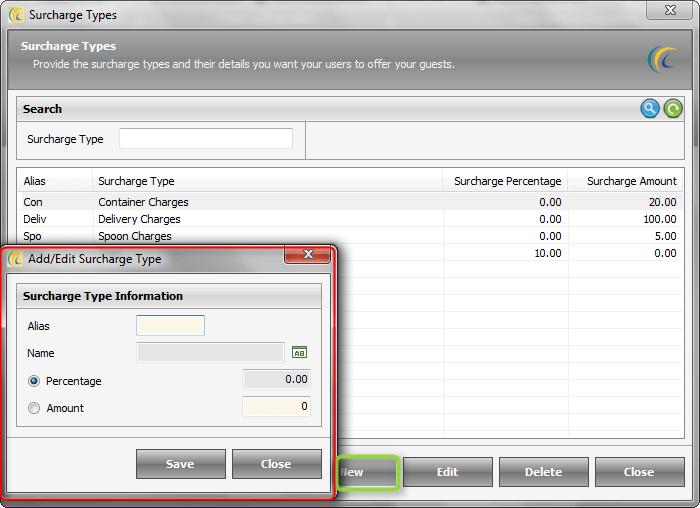
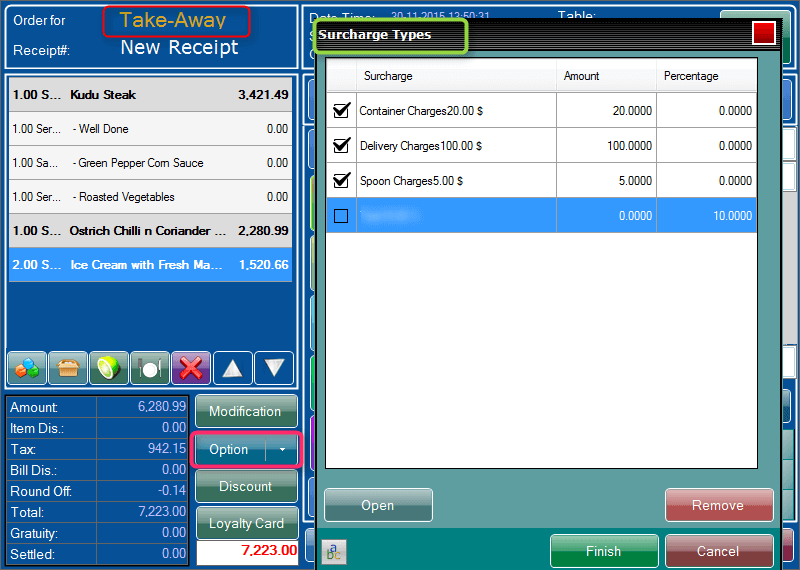
You will be able to create multiple surcharges and apply them accordingly whenever you are saving any take away orders. You can create the surcharge from eZee BurrP! Back Office by following this path:

POS Back Office Outlet Masters Surcharge New
1.1

Therefore, when you levy surcharge charges for Take Away, you will be able to choose multiple options from the surcharge list. These charges will also be reflected and displayed in the receipt generated for the corresponding KOT.
1.2

Configure your menu items in one shot

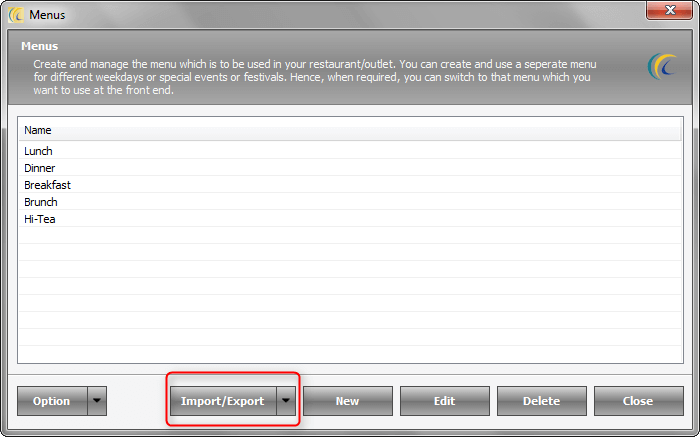
Configuring your menu items and their details is always a tiresome task. From this version onwards, you won’t have to worry about entering the menu items and information to your menu.

We have provided an enhancement of importing and exporting menu items in the POS Back Office, so that you can configure your menu items in a flash. On the other hand, if you want to use your menu in any other application; you can export it in no time.
2

Delivery charges now enabled in eZee Call Center

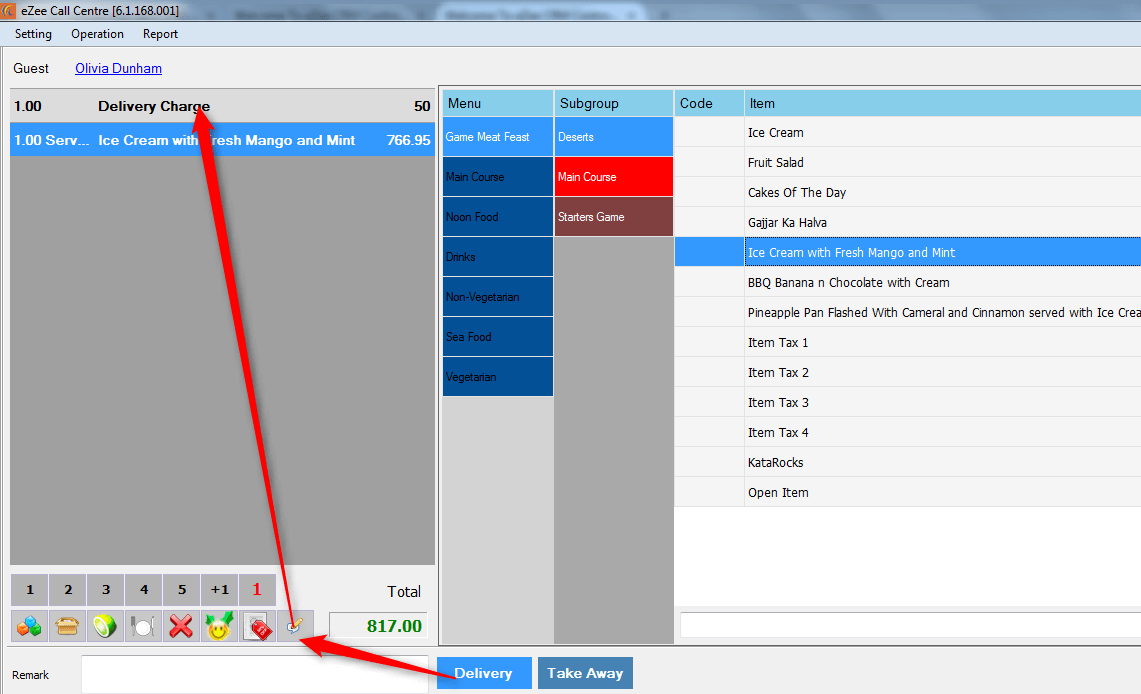
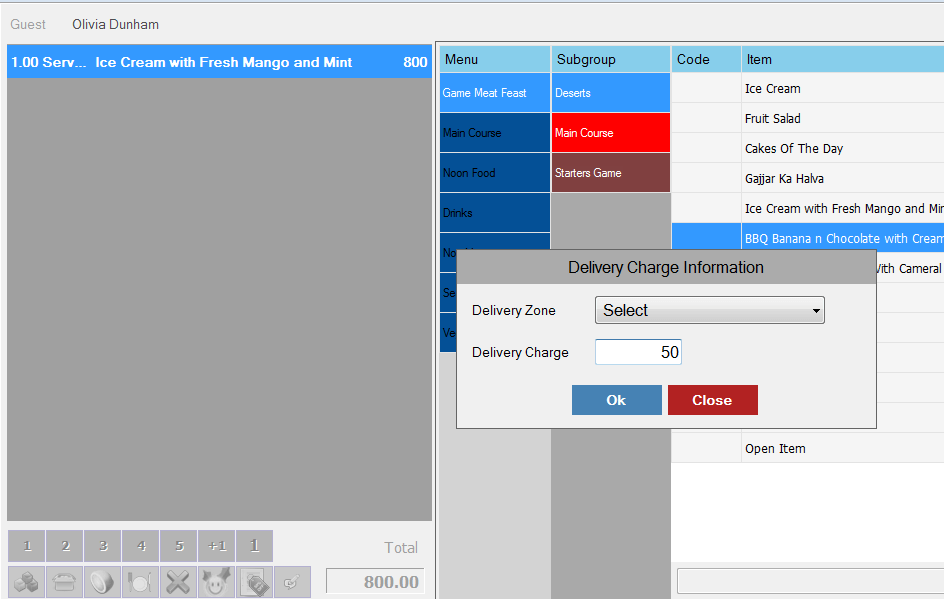
We brought in a new feature of assessing Delivery Charges in eZee Call Center in the latest version of POS. You will be able to add charges for a delivery order type transaction, which will be reflected in the eZee BurrP! branch. These charges will have to be added manually every-time you take a delivery transaction.
3.1

3.2

Make the use of Default Tax for any inventory purchase

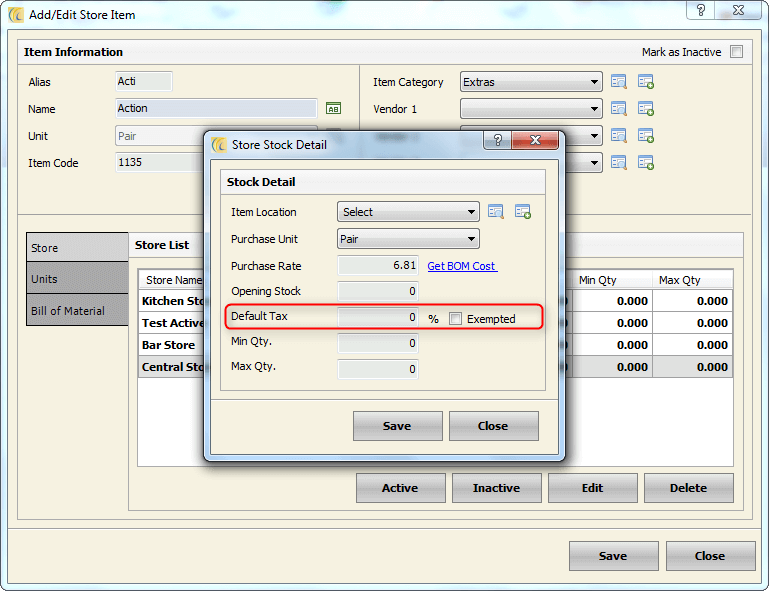
Whenever you make a purchase of any inventory item, you have to enter information like purchase rate, minimum and maximum quantity, opening stock, etc. The purchase rate you enter generally does not include the tax amount; or in other cases you have to cover the tax amount through some other operations.

To nullify these troubles, we have now added a ‘Default Tax’ option, configuring which you will know about the amount of tax incurred on the purchase. Along with this, you will also have an option to exempt the default tax from the purchase. You can use this feature from eZee BurrP! Back Office.

POS Back Office Outlet: Store Store Items Edit Store List Edit
4.1

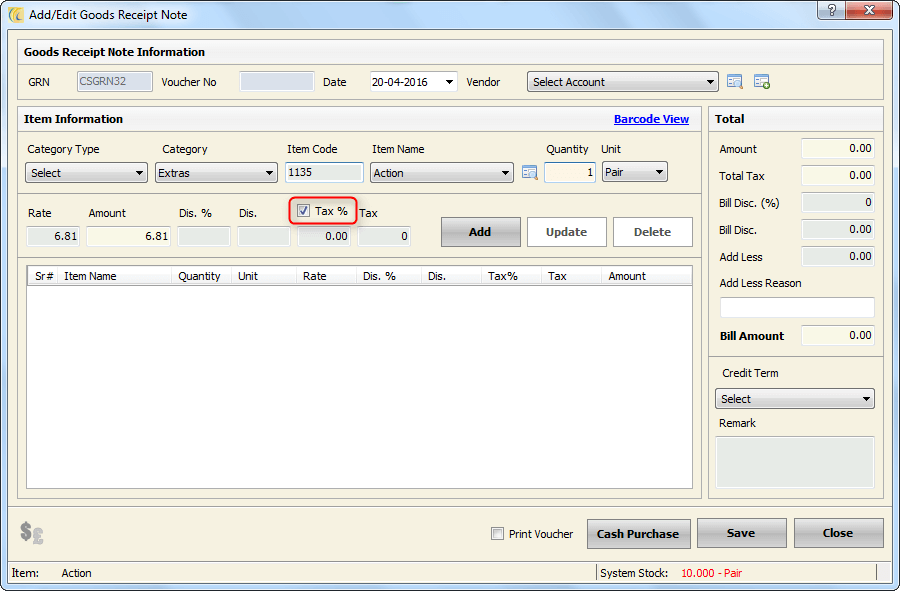
Similarly, in Goods Receipt Note, you will be able to configure the default tax amount or percentage and exempt it if required.
4.2

Read on to know what’s more in the latest release:

  • We have customized “Daily Sales Report” by adding a bifurcation with card and cash transactions as requested by one of our beloved clients.
  • You will be able to configure ‘Change Due’ amount for all settlement types.
  • In the latest version, you can validate Authorization key from POS BurrP! for Absolute to BurrP! Interface for room posting.
  • New Privileges introduced: POS BO User Operation Add/Edit User Privilege
    1. Material Management: “Can perform back date transaction” which allows you to go back by one day only for Store transactions.
    2. Property Configuration User Management: “Settle receipt before driver in (delivery)” through which you won’t be able to settle receipt of a delivery transaction before the driver is in.
  • In POS BO Guest Database, to enable better search results, we have now provided Guest Code in Search Criteria.
  • In this version, we have introduced a feature to view guest name when multiple KOTs are generated on same table.
  • You can generate the “Receipt Discount Report”, depending on the type of discount applied using the filter criteria.
  • For eZee BurrP! + eZee iMenu integration, if you freeze a menu item in eZee BurrP!, then it won’t be ordered from eZee iMenu.
  • For “Commission Report”, you will now be able to get the report according to multiple order types because of the new check-box to select order types.

How do you update your system?

Get the Service Pack link from eZee Support (refer to the steps below), execute the application and start using the latest version.

A quick guide on How to install Service Pack

  1. Take the latest backup of the database from server machine.
  2. Close all eZee applications before executing the Service Pack.
  3. Execute Service Pack on server machine first if the software is installed in a client – server environment.
  4. Repeat the same process on all client terminals where eZee software is installed.

Note: Please contact eZee Support to get download links of Service Pack.
http://www.ezeetechnosys.com/Live_Support.html

We always keep our solutions up-to-date as per ever changing industry demands. If you face any trouble using eZee Solutions, you can report it on link given below.
Submit a Ticket Advantages of AMCDownload a PDF

Levy minimum charges on pax instead of table type

Get the all new version of eZee BurrP! and avail several new features and enhancements.

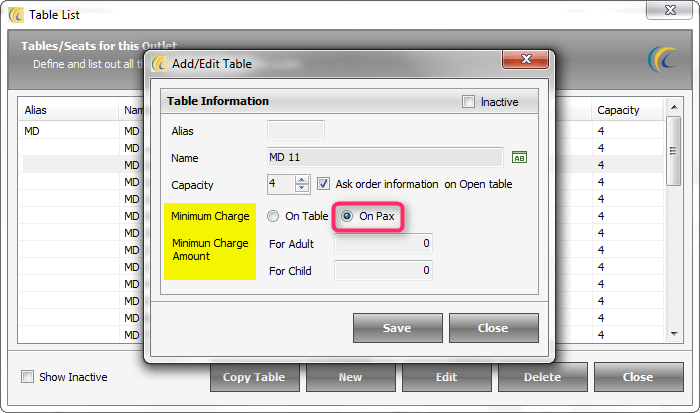
Calculate Minimum charges of a table based on pax

Minimum charges of a table indicate the minimum order amount required for dining at that table. Along these lines, if the order amount turns out to be lower than the minimum amount; eZee BurrP! will restrict KOT and receipt generation.

Up till the last version, the system used to incur minimum charges on guests depending only on the table they were seated on. However, from this latest version, you will be able to determine the minimum charges based on the pax seated at the table. You can enable this feature by following the mentioned path:

POS Back Office Outlet Table Operation Add/Edit Table

1

Search in report is now easier with Item Location filter

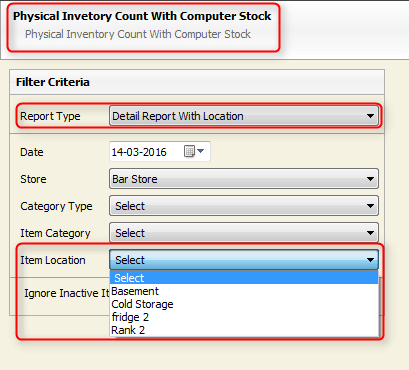
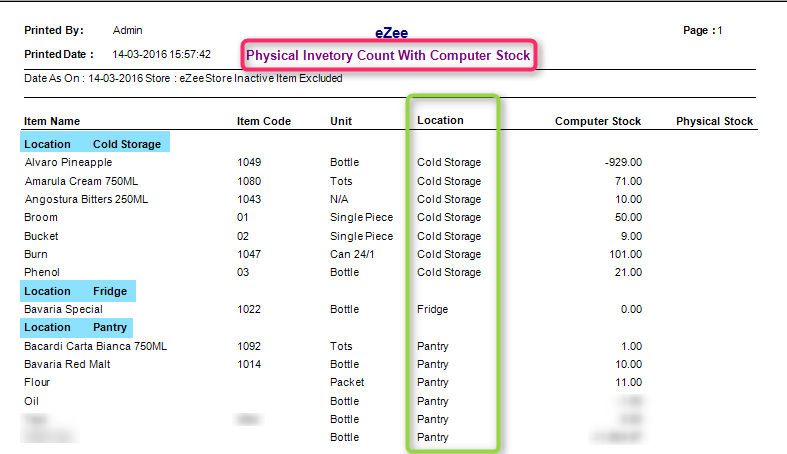
In “Detail Report with Location”, the sub-report of “Physical Inventory Count with Computer Stock Report”, we have now added a new filter criteria of Item Location, with the help of which you can get stock details of an item according to their locations in respective stores.

The filter criteria of Item Location:

2.1 (extra)

The Detail Report with Location:

2

Quick search and card swipe at your fingertips for No-charge accounts

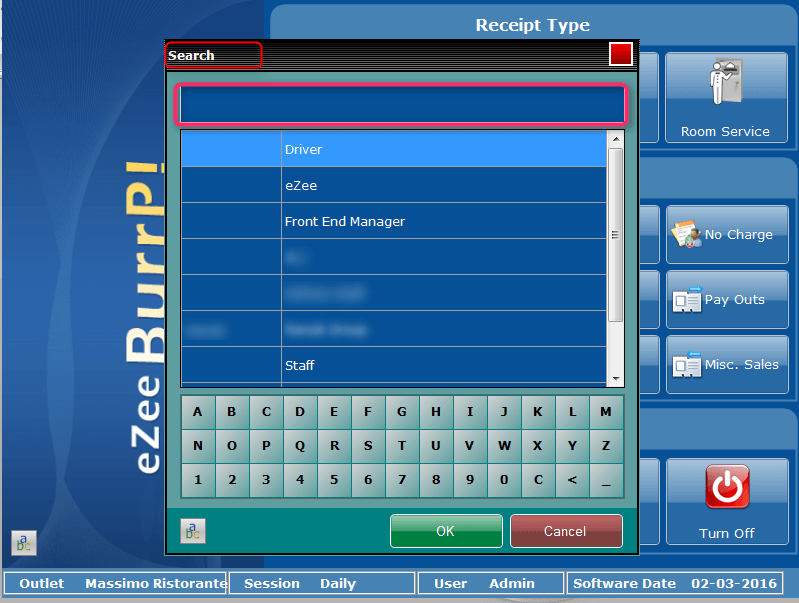
To eliminate the hassle of finding No-charge accounts while placing an order in eZee BurrP!, we have equipped the No-charge accounts window with a search box, from where you can search and get the required account easily.

3

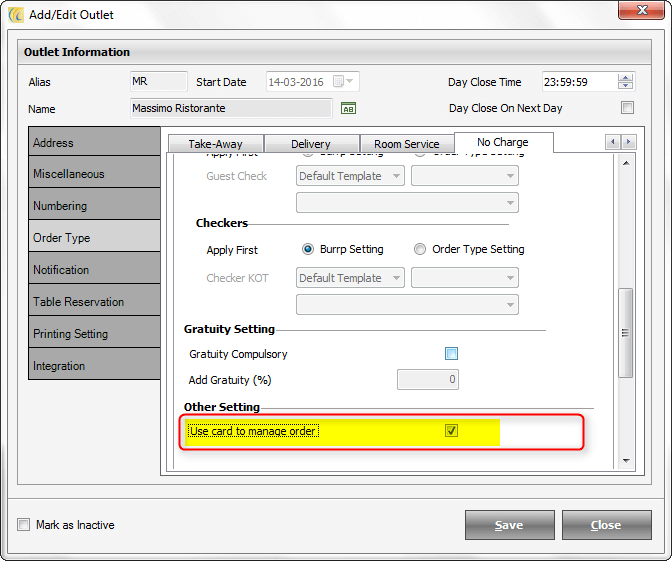
Along with this, for the properties using ‘No-charge’ account cards, the system displays a screen asking for card swipe rather than selecting the required ‘No-charge’ account while taking an order. You can enable these settings from POS Back Office as shown below:

POS Back Office Configuration Tab Add/Edit Outlet Order Type No Charge

3.1

Track the balance precisely while changing shift

Earlier in Open-Close Shift, the system gave an option to add opening balance while opening shift, but it did not ask the user to enter the closing balance at the time of closing shift. Now, we have added a new window in which an option will be provided to insert closing balance while closing shift as well as record the cash denominations present in the cash drawer.

4

The new release has more to offer. Keep Reading!:

  • Now, iMenu Monitor will act as a service which can run as an administrator in Windows.
  • In “Daily Sales Report”, bifurcation of tax will be available in new version in addition to bifurcation of category wise amount.
  • To help you classify the commission according to ‘Order Type’, we have provided a drop down list for it accordingly under “Commission Report” in the latest update.
  • Now, while creating or editing a No Charge Account, you can create a new No Charge Group.
  • New Privileges introduced: POS BO User Operation Add/Edit User Privilege
    1. Food & Beverages KOT Operations: A privilege is added that would restrict users from performing operations like Item Search, Repeat Item, Hold KOT and more.
    2. Property Configuration User Management: New privilege limiting “Access to General Settings” in eZee BurrP! Back Office.
    3. Property Configuration User Management: In order to edit user rights, a new privilege of “Edit User” is added.
    4. Food & Beverages Order Type: You can restrict users depending on the order type using these “Order Type” privileges.
  • Guest Code will be automatically generated whenever you take a new order.
  • For each order, Receipt # and Token # will be shown in the call center.
  • In order to verify the KOTs of same guest, you will be able to print all KOTs of the same guest on one single page.

How do you update your system?

Get the Service Pack link from eZee Support (refer to the steps below), execute the application and your system will be updated in a flash.

A quick guide on How to install Service Pack

  1. Take the latest backup of the database from server machine.
  2. Close all eZee applications before executing the Service Pack.
  3. Execute Service Pack on server machine first if the software is installed in a client – server environment.
  4. Repeat the same process on all client terminals where eZee software is installed.

Note: Please contact eZee Support to get download links of Service Pack.
http://www.ezeetechnosys.com/Live_Support.html

We always keep our solutions up-to-date as per ever changing industry demands. If you face any trouble using eZee Solutions, you can report it on link given below.
Submit a Ticket Advantages of AMCDownload a PDF

Automate database back-up deletion easily.

Upgrade your eZee BurrP! Restaurant POS software to avail the benefits of the enhanced version. Install the new version of the Restaurant POS and get benefit of various enhancements.

Now you can activate menu items whenever you want to !

In the new version, you will be able to activate/de-activate menu items on timely basis from POS Back Office easily. This becomes helpful when you want to serve a particular menu item only during a particular time of the day, you will be able to set the time as required. Additionally, you can even choose the order type (like Take-away, Dine-in..) for which you want to keep the menu item in-active.

The image shows that from BurrP! Configuration, you can set the time for the menu item to be active:

Picture4

You will get an SMS notification upon cancellation of a KOT item

You will now be able to receive an SMS alert if a KOT Item is cancelled. This feature can be enabled from POS Back Office. Stay updated on the canceled items at the store so as to keep track on the wastage and inventory.

Picture5

Schedule the back-up database to be deleted automatically

In this version of eZee BurrP! POS, we have introduced automatic deletion of back-up database. Set the time when you want to delete your back-up database, and it will be deleted on its own. This feature will save you precious storage space and more importantly the time spent in deleting the back-up database manually.

Picture6

Know about other enhancements in the latest release:

  • In Banquet Booking, additional User Audit-trail log for “Generate Invoice” and “Void Invoice” function .
  • If your eZee BurrP! System is integrated with eZee Absolute cloud PMS, you get Tax Bifurcation while posting room charges.
  • In order to see month-wise report in Yearly Sales Report, we have added check boxes for each month.
  • To keep a check on the wastage of item resources and voided items, we have added a drop down list to obtain different receipt reports for wastage and void items.
  • You now get an option to add menu item as per order type.
  • A pop-up message will be displayed while trying to generate receipt for a table for an amount which is less than minimum charge.
  • More restrictions on user rights to provide complimentary items to guests.
  • If KOT Item is canceled before creating a receipt, it will be reflected in the User Activity Log Report.
  • Date-wise filter available in Time Sheet report.

How do you update your system?

Get the Service Pack link from eZee Support (refer to the steps below), execute the application and your system will be updated in a flash.

A quick guide on How to install Service Pack

  1. Take the latest backup of the database from server machine.
  2. Close all eZee applications before executing the Service Pack.
  3. Execute Service Pack on server machine first if the software is installed in a client – server environment.
  4. Repeat the same process on all client terminals where eZee software is installed.

Note: Please contact eZee Support to get download links of Service Pack.
http://www.ezeetechnosys.com/Live_Support.html

We always keep our solutions up-to-date as per ever changing industry demands. If you face any trouble using eZee Solutions, you can report it on link given below.
Submit a Ticket Advantages of AMCDownload a PDF

Get an option to choose address details printed on the bill.

Read the complete article to learn more about the new enhancements added along with advancement of existing features and modules. Get informed about the benefits and attributes of installing the new version of eZee BurrP! Restaurant Point-of-sale software.

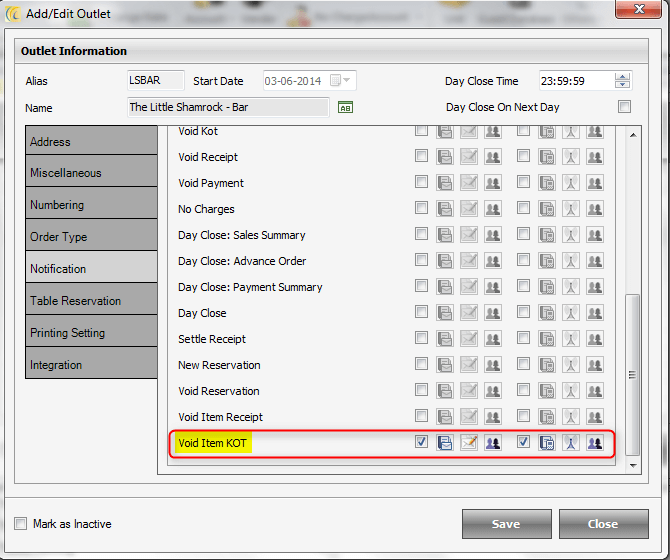
Details of Authorization printed on Indent Voucher

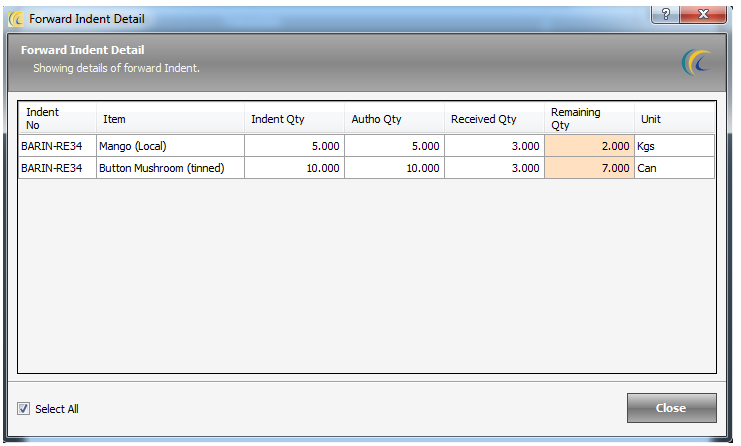
In Forward and Received Indent Voucher Provide, you can print the authorization status wherein you can print if the Indent is authorized or not along with the details of user who Authorized on “Indent Voucher” & “Received Indent”. It will work on Template # 2.

2912

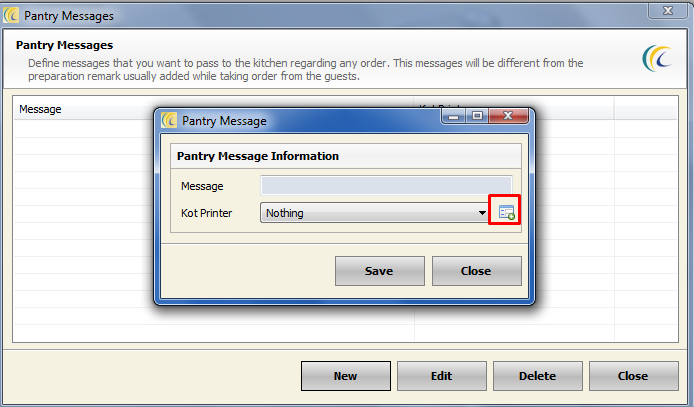
KOT Printer option added for Pantry messages

While taking orders from the guests, you can pass the pantry messages to the concerned counters. With the added option of KOT Printer for pantry messages, you can get the KOT printed on respective counters.

2944

Select which address details to print on bill

For delivery orders, while printing the bill for a guest you can select which details to print. As in, you can include only required details and exclude the unnecessary details which are not required, like country name.

2856

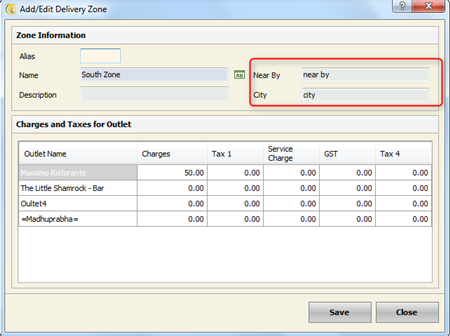
More Details in Delivery Zone

When you take delivery orders, you get additional fields to specify the delivery zone. You can even record area as well as buildings as identifiers.

2855

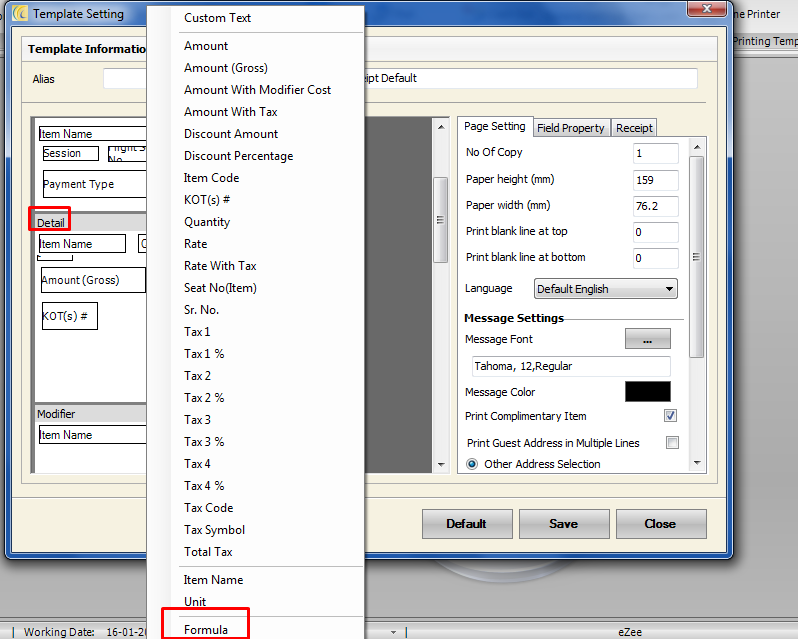
Calculate and print ‘Formula’ in receipt

In Windows receipt template, you can add a custom field of formula in Detail segment, from which you can derive the amount as per the calculation.

2844

What’s more in the latest release:

  • Cost and Total Cost column added on Inventory Transaction Report.
  • Color of selected item/Menu group will be displayed in the same panel.
  • In sales commission report, a Driver wise commission report just same as Waiter commission report is added.
  • New Privilege added for Summary View.
  • In Dine-in, if you configure 2 different rates for rooms and then if you transfer tables from one room to another room, system will change rates accordingly.
  • Option to auto page cut for Star Printer available in new version.
  • When Customer requests for Guest check or Waiter from eZee iMenu, POS System would intimate the eZee BurrP! user with a message.
  • Additional report that shows room wise sale in eZee BurrP!.
  • We have added an option to print all the open KOTs from the table itself.
  • Group Banquet Tax Invoice will now display Tax Invoice Generation Date.

How do you update your system?

Get the Service Pack link from eZee Support (refer to the steps below), execute the application and your system will be updated in a flash.

A quick guide on How to install Service Pack

  1. Take the latest backup of the database from server machine.
  2. Close all eZee applications before executing the Service Pack.
  3. Execute Service Pack on server machine first if the software is installed in a client – server environment.
  4. Repeat the same process on all client terminals where eZee software is installed.

Note: Please contact eZee Support to get download links of Service Pack.
http://www.ezeetechnosys.com/Live_Support.html

We always keep our solutions up-to-date as per ever changing industry demands. If you face any trouble using eZee Solutions, you can report it on link given below.
Submit a Ticket Advantages of AMCDownload a PDF

Now, save time in deactivating a table.

eZee BurrP! 6.1.160.005 is now available. Here is a list of the changes implemented by Team eZee:

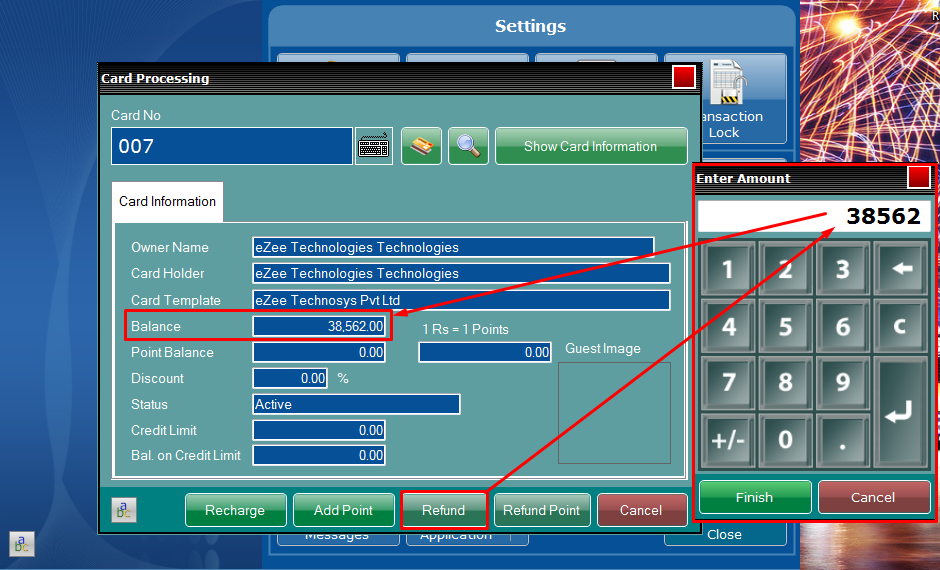
Refund button shows the total balance of your card

Now you can know how much total balance in you have in the card by default, which is even alterable in top up option. You can easily find out how many points you are left with after redeeming them. Refer the image below.b_160_1

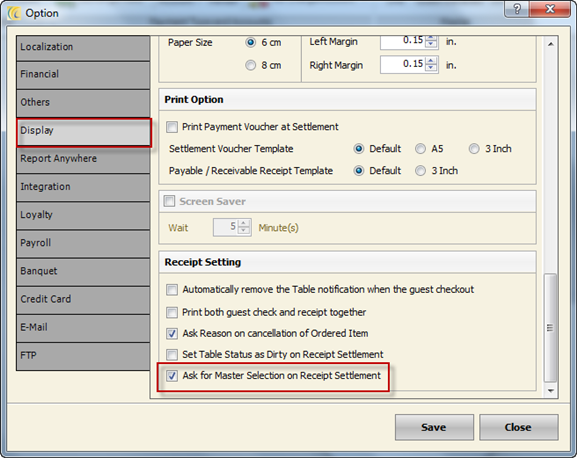
You can enable/disable Master Selection on Receipt Settlement

In this enhancement, we have provided a facility to disable the option of selecting Master KOT, while generating a single receipt for multiple KOTs.

Flow of operation:
1.Go to mark_r from POS Back Office mark_r Option.
2.Now go to the Display tab, where you can see a checkbox before ‘Ask for Master Selection on Receipt Settlement’
3.You can check or uncheck the setting as per your requirement for the response when you have more than one Receipt or KOT for Settlement.
b_160_2

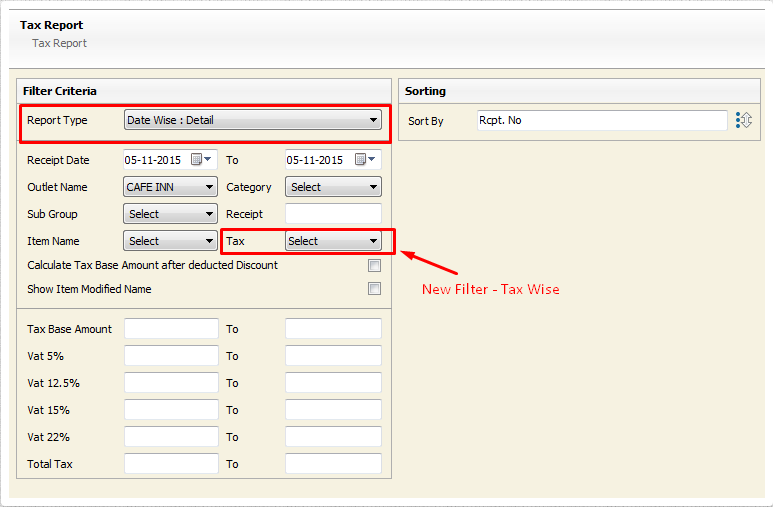
In Tax Report, we have added a new filter for Tax wise sale.

b_160_3

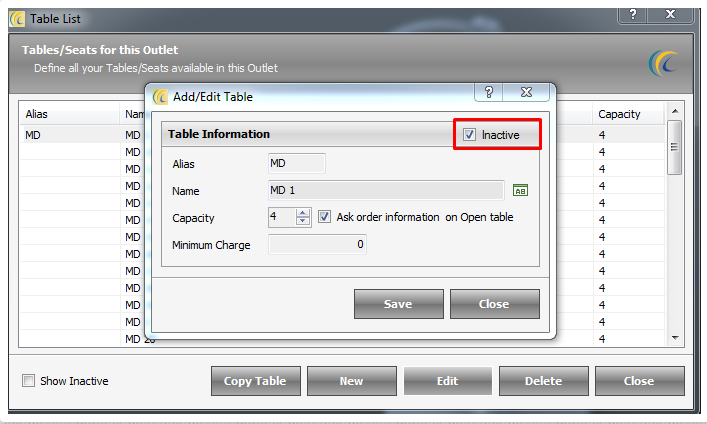
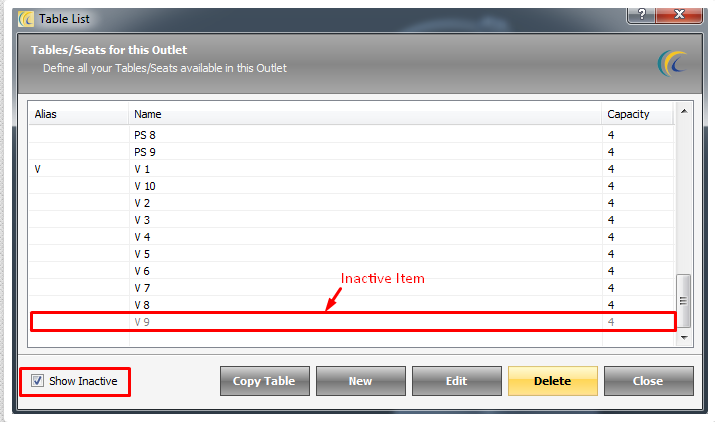
Mark any table as ‘Inactive’ with this option

With the added option of marking any table as ‘Inactive’, you can easily put the table in inactive list if there is no KOT or receipt are generated or simply, if the table is under maintenance.
b_160_4

The table marked as inactive will no longer be accessible for users as shown below.

b_160_5

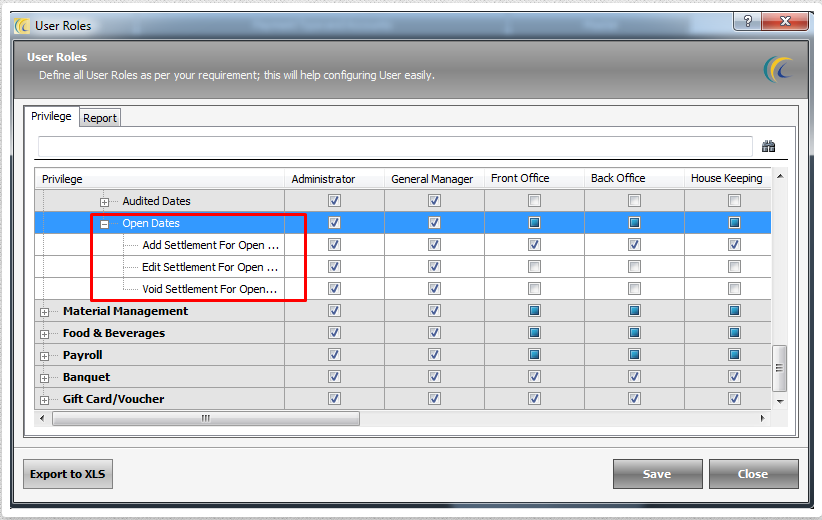
Now you can disable Void Settlement for Open date

With this advanced privilege, the system will not allow the user to void the payment taken on current date. All you need to do is, set the status for “Void Settlement for Open date” for Vendor Payment.
b_160_6

Read more to learn what else do you get in this release:

  • When Customer requests for Guest check or Waiter from eZee iMenu, POS System would intimate the eZee BurrP! user with a message.
  • Additional report that shows room wise sale in eZee BurrP!.
  • We have added an option to print all the open KOTs from the table itself.
  • Group Banquet Tax Invoice will now display Tax Invoice Generation Date.

How do you update your system?

Get the Service Pack link from eZee Support (refer to the steps below), execute the application and your system will be updated in a flash.

A quick guide on How to install Service Pack

  1. Take the latest backup of the database from server machine.
  2. Close all eZee applications before executing the Service Pack.
  3. Execute Service Pack on server machine first if the software is installed in a client – server environment.
  4. Repeat the same process on all client terminals where eZee software is installed.

Note: please contact eZee Support to get download links of Service Pack.
http://www.ezeetechnosys.com/Live_Support.html

We always keep our solutions up-to-date as per ever changing industry demands. If you face any trouble using eZee Solutions, you can report it on link given below.
Submit a Ticket Advantages of AMCDownload a PDF

Let your users be updated with all the privileges!

eZee BurrP! 6.1.159.005 is now available for eZee Point-of-sale system users to get updated. Check out the update details below and learn what new do you get with this release.

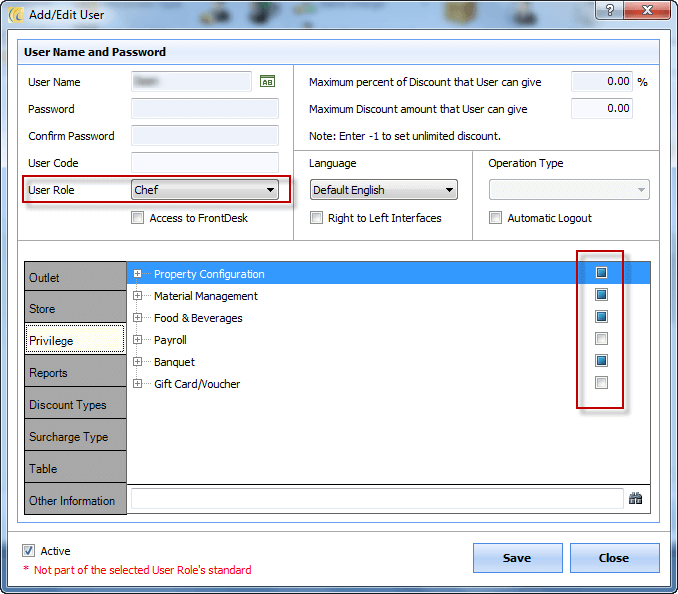
Irrespective of the user role, you can see all the privileges.

As shown in image, you can open User Operation from POS Back Office. Here you can see all the privileges regardless of the User Role selected as well as access to eZee BurrP! settings.

2756

Now, if user want to set privilege that is not present in current User Role Standards, he/she can do that from the user operation window.

Extra privileges are marked with star (*) at the end of privilege name, like shown in the image below.

2756_2

They will automatically be removed when user sets that privilege to the User Role Standard from User Role Configuration.

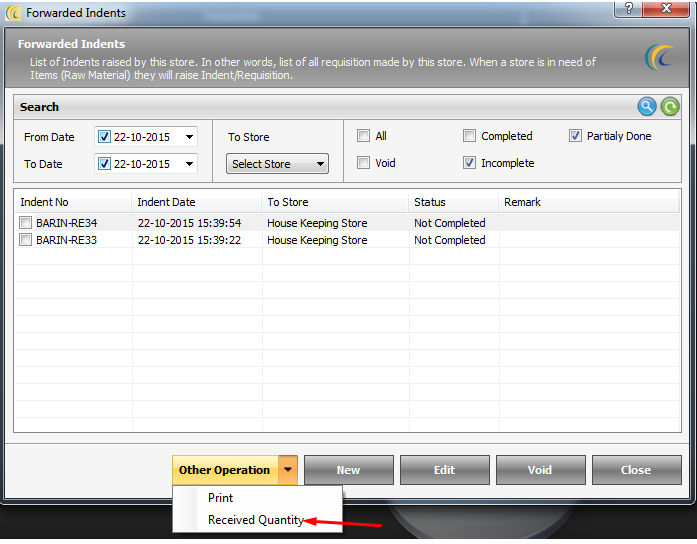
Check item quantity in between Indents and more

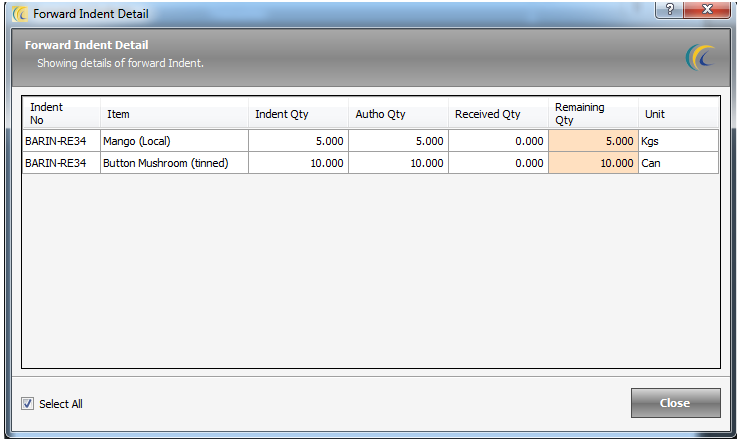
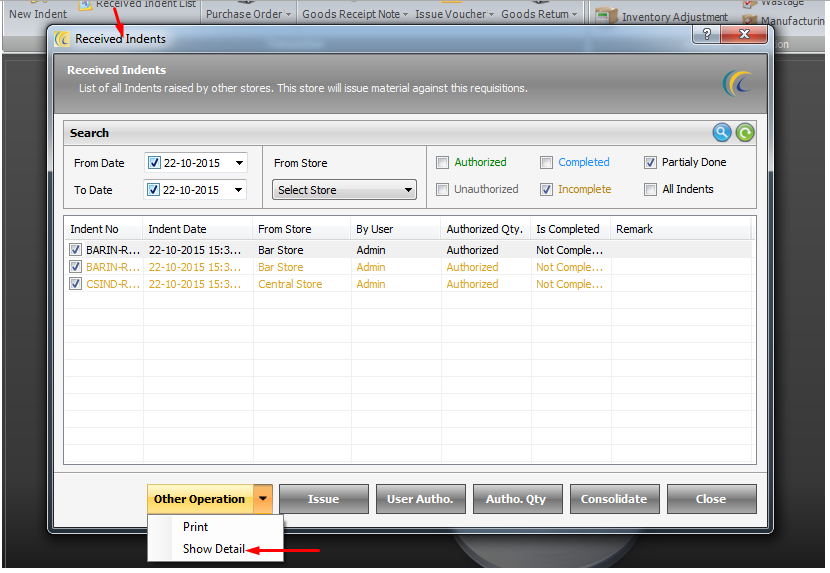
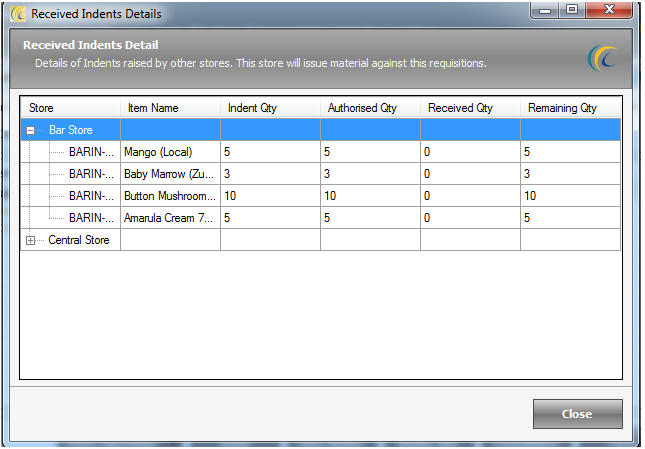
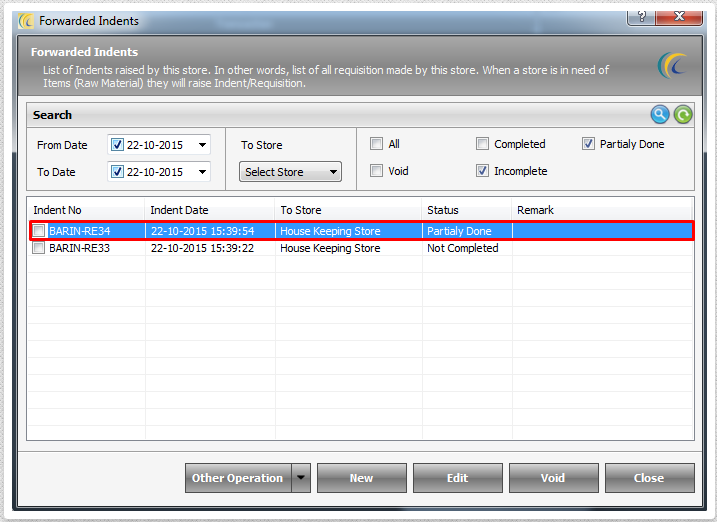
We have added a new option to check item quantity confirmation in between Indent and Issue Voucher in between store.

2727

2727_2

2727_3

2727_4

2727_5

2727_6

Get Grand Total in Sales by Order type report

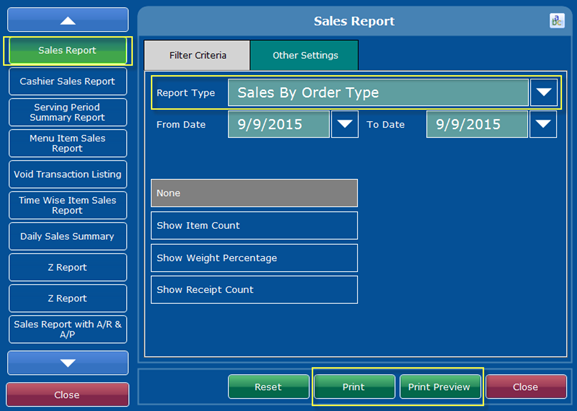
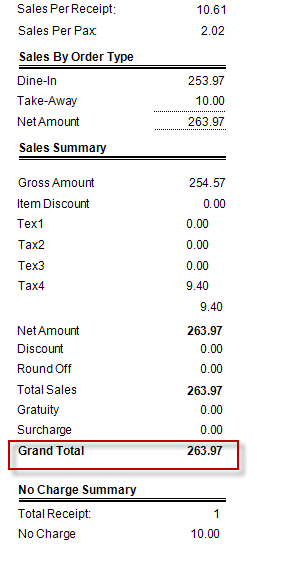
In ‘Sales by Order type report’ under Open Sales Report, you will now get Grand Total.
Where, Grand Total = Total Sales + Gratuity + Surcharge

2580

2580_2

There is a lot more in release, below are given some more updates.

√ Now, we can see the edited user privilege from POS Back-Office of access to eZee FrontDesk in User Activity Log report.

√ Delivery charge will be shown at the end of the receipt template.

√ New we have added option to convert modifier item as set Menu item.

√ eZee Call Center : it will display the total number of records found when we Search, or simply click on Refresh button.

√ After creating nested modifier group, system will not show the nested group in Modifier group list view.

How do you update your system?

Get the Service Pack link from eZee Support (refer to the steps below), execute the application and your system will be updated in a flash.

A quick guide on How to install Service Pack

  1. Take the latest backup of the database from server machine.
  2. Close all eZee applications before executing the Service Pack.
  3. Execute Service Pack on server machine first if the software is installed in a client – server environment.
  4. Repeat the same process on all client terminals where eZee software is installed.

Note: please contact eZee Support to get download links of Service Pack.
http://www.ezeetechnosys.com/Live_Support.html

We always keep our solutions up-to-date as per ever changing industry demands. If you face any trouble using eZee Solutions, you can report it on link given below.

Submit a Ticket Advantages of AMCDownload a PDF